Playing Roblox alone can be fun, but it feels very different when you can jump straight into the same server as a friend. The way to do that is simple: add them as a friend on Roblox. Once the request is accepted, you can see when they are online and follow them into the game they are playing.
This tutorial shows how to add a friend on Roblox step by step, with screenshots from our own account taken on 14 October 2026. The layout shown is the latest Roblox version, with Home, Avatar, Friends and More in the menu on the left.
Open the Friends Menu in Roblox
There are two ways to reach the friends page. The quickest is the Friends icon in the left menu, just below your avatar picture. If that icon is not visible, for example on a small screen, open the More menu and choose the box labelled Friends.
The More menu holds many shortcuts such as Marketplace, Profile, Inventory and Settings. For friends, look for the Friends box in the first row.
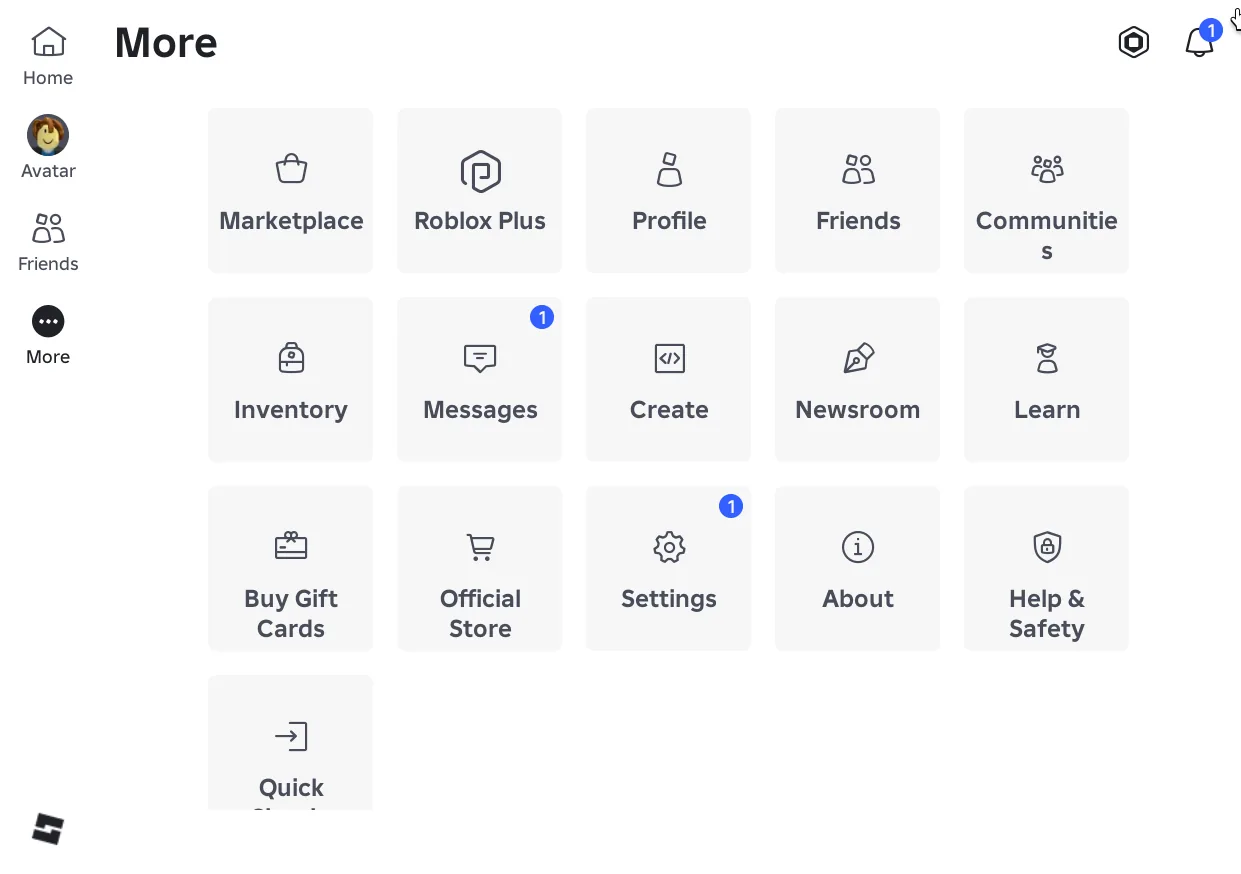
Keep in mind that the menu position can differ slightly between the desktop app, the phone app and the browser. The menu names are the same, so look for the word Friends or the icon of two people.
Get to Know the Friends Page
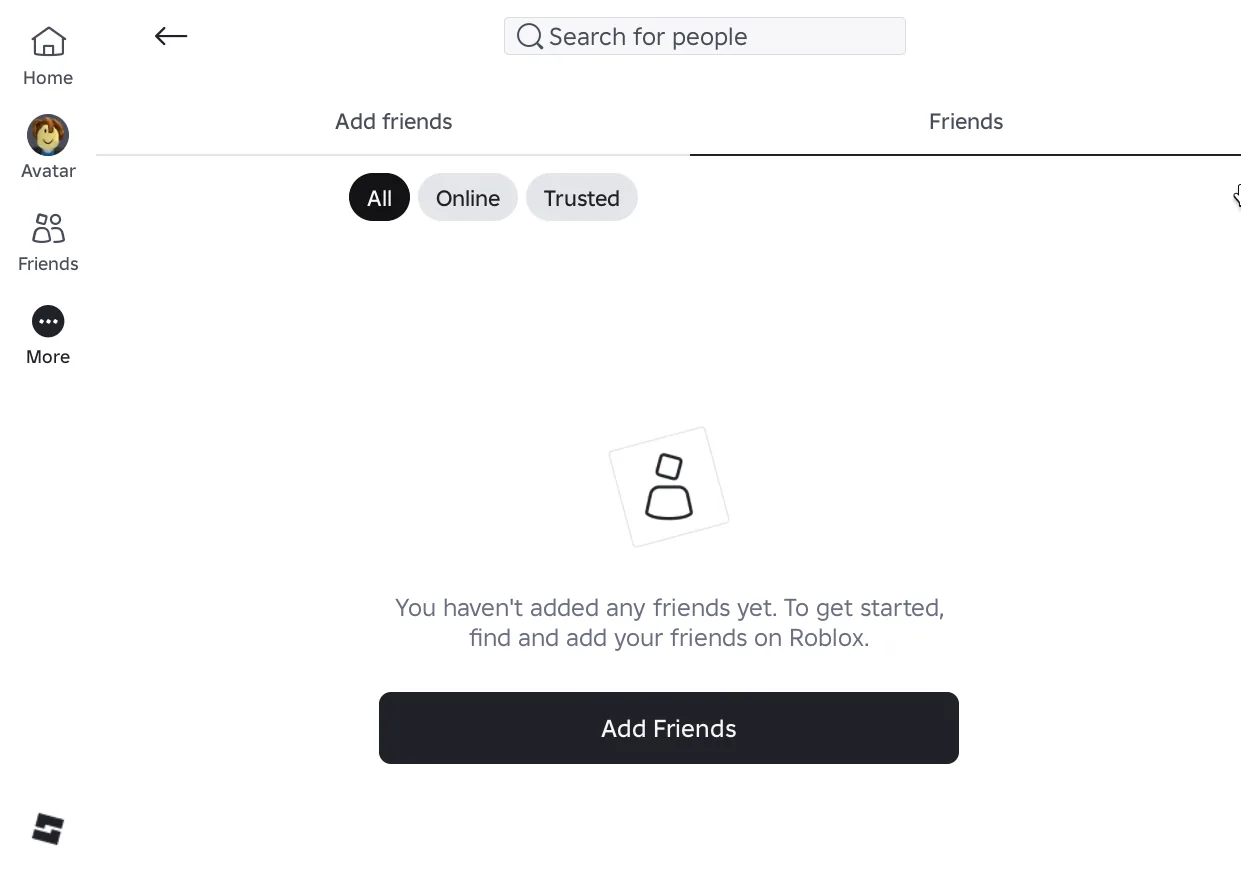
The Friends page has two tabs at the top, Add friends and Friends. The Friends tab shows the friends you already have, with the filters All, Online and Trusted. Online is handy when you want to know who is playing, while Trusted holds the friends you have marked as trusted.
On a new account the page is empty and shows a message that you have not added any friends yet. Below it is a black Add Friends button that takes you to the tab for adding friends. At the very top there is also a Search for people box for finding a player by username.
How to Add a Friend by Username
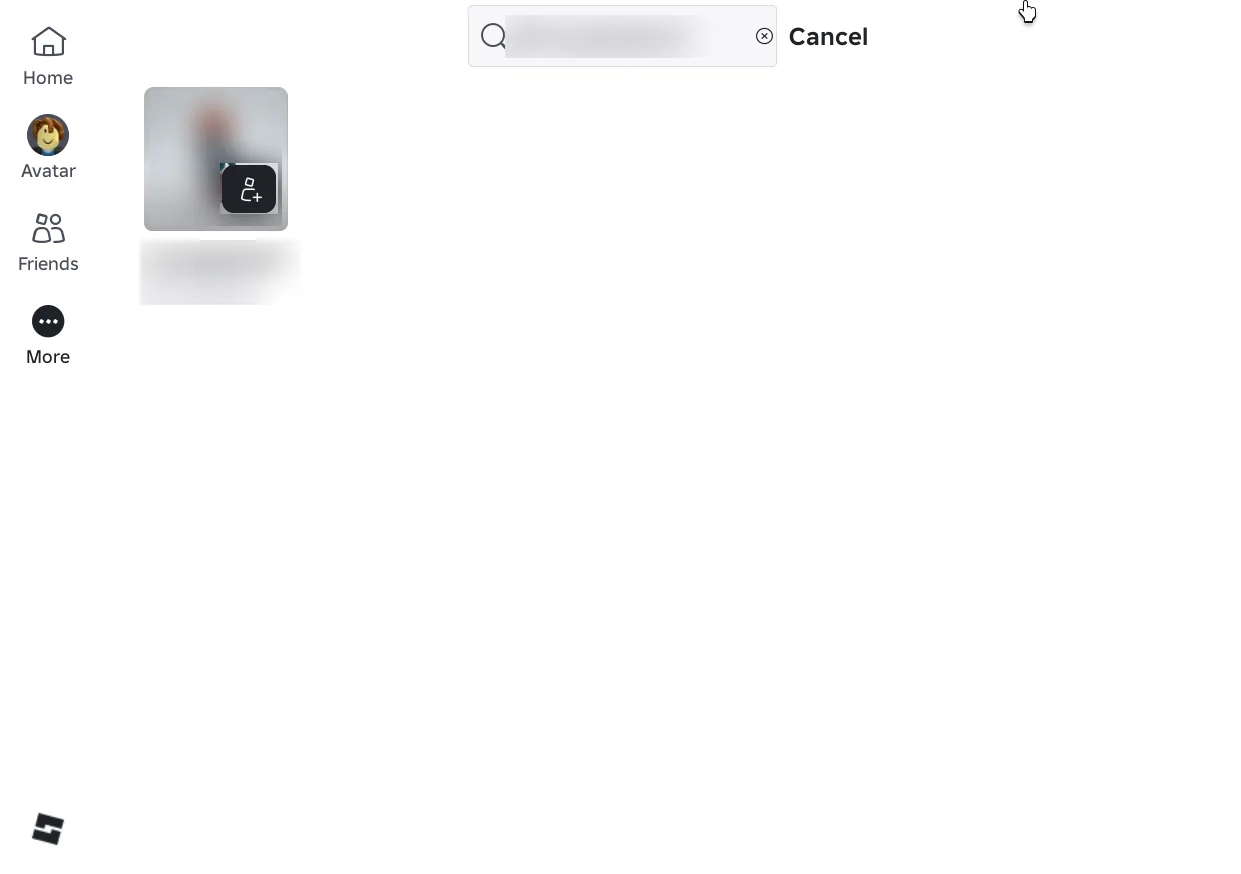
The most reliable way to add a friend is by username. Ask your friend for their Roblox username, the name that starts with @ on their profile. Type it into the Search for people box and wait for the results.
The results show the avatar picture, the display name and the username below it. Make sure the username in the results matches exactly what your friend gave you, because many people can share the same display name. Once you are sure, press the person icon with a plus sign at the corner of the avatar picture to send a friend request.
After You Press Add, the Status Shows Pending
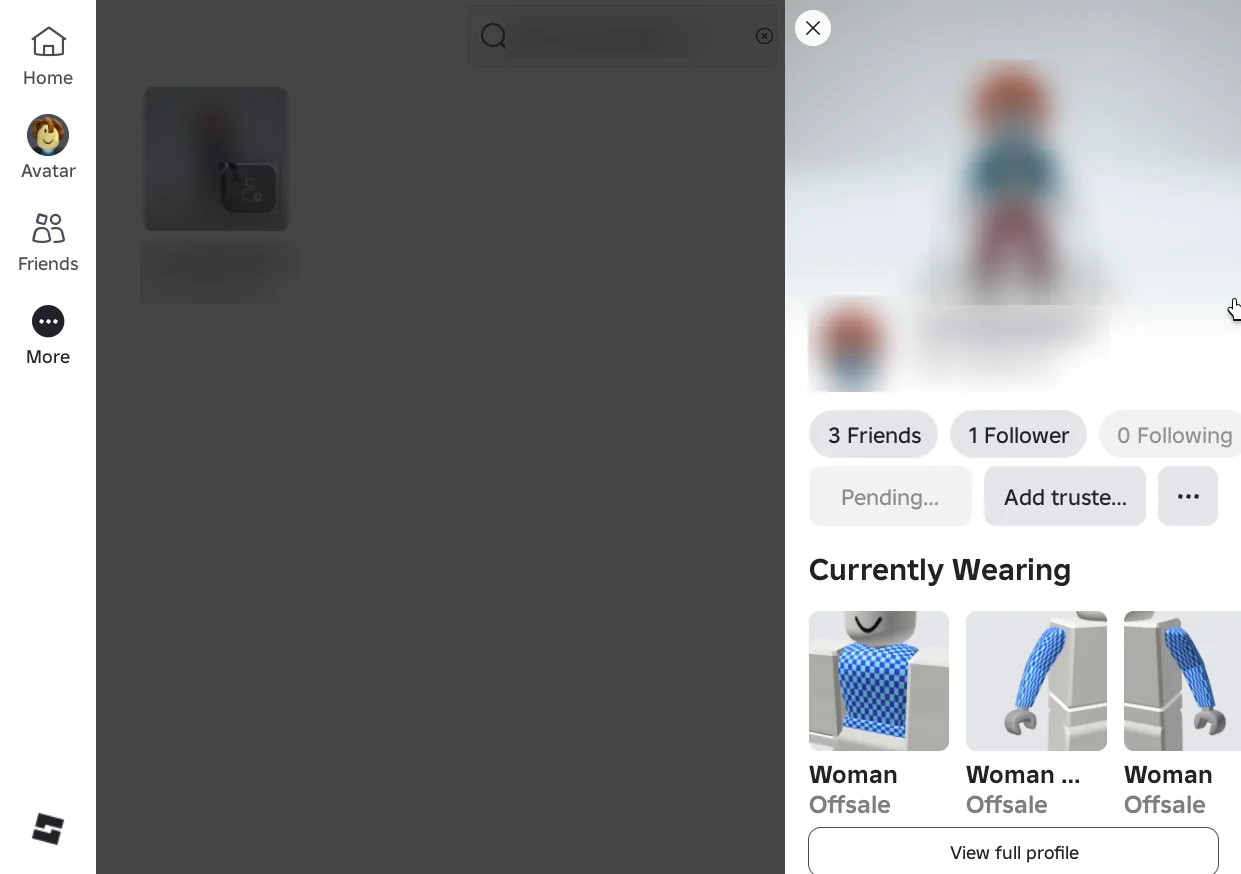
As soon as you press the add friend icon, Roblox opens a short profile panel on the right side of the screen. In this panel you can see the person’s avatar, their friend and follower counts, and the items they are wearing under Currently Wearing. The friend button that was a plus icon now reads Pending.
Pending means your request has been sent and is waiting for an answer. You are not friends yet until your friend accepts it from their notifications or their own Friends page. Next to it is an Add trusted button for making them a trusted friend, and a View full profile button at the bottom if you want to see the whole profile.
Add Someone You Played With
The Add friends tab also suggests players you can add. One of the most useful suggestions is labelled Played together, which means you were in the same server. This helps when you forgot to ask for the username of someone who was fun to play with.
There is an Add button next to each suggestion. Press it and the friend request is sent, just as when you add someone through search. Still check the name and avatar so you do not add the wrong person.
Why an Age Check Notice Appears
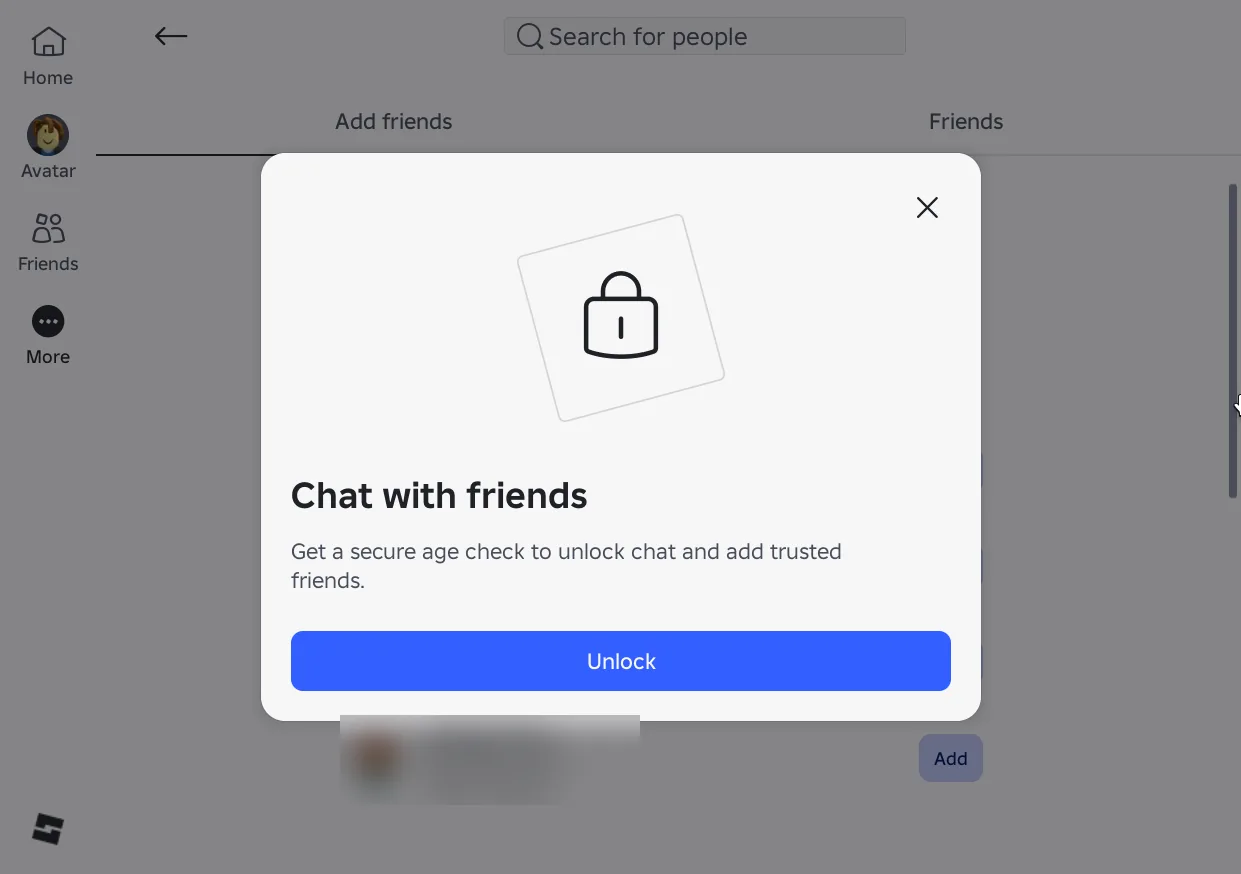
The first time we opened the Add friends tab, a window titled Chat with friends appeared. It asked us to complete a safe age check to unlock chat and trusted friends. The window appears because Roblox now limits chat features until the age on the account is verified.
You can press Unlock to go through the age check, or close the window with the cross if you only want to add regular friends. On our screen the Add buttons in the suggestion list were still visible behind the window. Chat and trusted friends, however, only open after the age check is complete.
If a Friend Request Does Not Go Through
The most common problem is a wrong username. Letters that look alike, such as l and I, or extra numbers at the end of a name can make you add someone else. Always match the username written after the @ sign, not the display name.
Another possibility is a privacy setting. Some players set their account so that it does not accept requests from just anyone. If that happens, ask your friend to send the request first, and you only need to accept it.
- Check the bell icon for incoming requests.
- Reload the Friends page if the friend list has not updated.
Staying Safe With Friends on Roblox
Only add people you really know or have played with comfortably. Never share your password, a verification code or personal details with anyone, including new friends who offer Robux or free items. Offers like that are almost always scams.
If a friend ever makes you uncomfortable, you can remove them from your friend list or block them. The trusted friend feature is best kept for people you know in real life. Once you have friends, invite them to pick up free Roblox items together so your avatars match.
This tutorial is based on how Roblox looked on 14 October 2026. Roblox can move menus at any time, so if your screen looks different, please also read our Disclaimer.
